This project is for a digital clock based on NeoPixels driven by an Arduino microcontroller. One thing to note is the clock is huge! The dimensions are 43.5cm x 16cm.
Introduction
The 3D design is not mine but can be downloaded from thingyverse: 7 Segment IOT Smart Clock
The original project was based on an IOT clock controlled by an online dashboard. I didn’t need that level of sophistication so I opted to use an Arduino R4 with its internal real time clock (RTC) to keep time. This was not a great idea as it turns out, more of that later.
The project is not complete but is a working in-progress. For instance, I have not included a way to set the time without using the computer. I also want to add a method to change the colour of the digits and a way to dim the digits in dark ambient light.
Design
As already mentioned the 3D design is available on Thingyverse.
For the electronics I decided to use an Arduino microcontroller as I had experience driving NeoPixels for my model railway layout. A library is used for the NeoPixels and is available from Adafruit.
My idea was to use the Arduino R4 Nano as it has an internal RTC which can be kept active using a small 3v battery for when power is removed from the clock. This was easy to program and works as expected. That was until I noticed the clock was not very accurate. It was gaining time meaning the clock was out by minutes at the end of the day. It is well documented and not easy to fix. I could automatically reset the time each day to keep it more accurate but in the end I decided to use an external RTC. The RTC of choice was the DS3231 which I got preassembled from eBay.
Construction
Start by printing the 3D case. I used Black PLA+ for the surrounds and backs, and I used white PLA+ for the individual segments. Before assembly, I created a paper template of the segments so I could assemble the NeoPixels.

I stuck the NeoPixels to the template and soldered connections between keeping mind of the flow (NeoPixels have an input and output) connecting the output of one pair of pixels to the input of the next. I labelled the segments using the traditional 7 segment labels, a-g. On the first and last connection I had longer wires with connectors to connect to the next digit.
The digits need to be screwed together with 3mm screws and nuts. They are hidden inside. The NeoPixel digits can then be glued in place and connected to the next digit. The first digit will have connections for the Arduino and then connect to the second digit through the centre hole.

At this point I prototyped the Arduino hardware on a plug in breadboard and connected to the NeoPixels assembled in the enclosure.

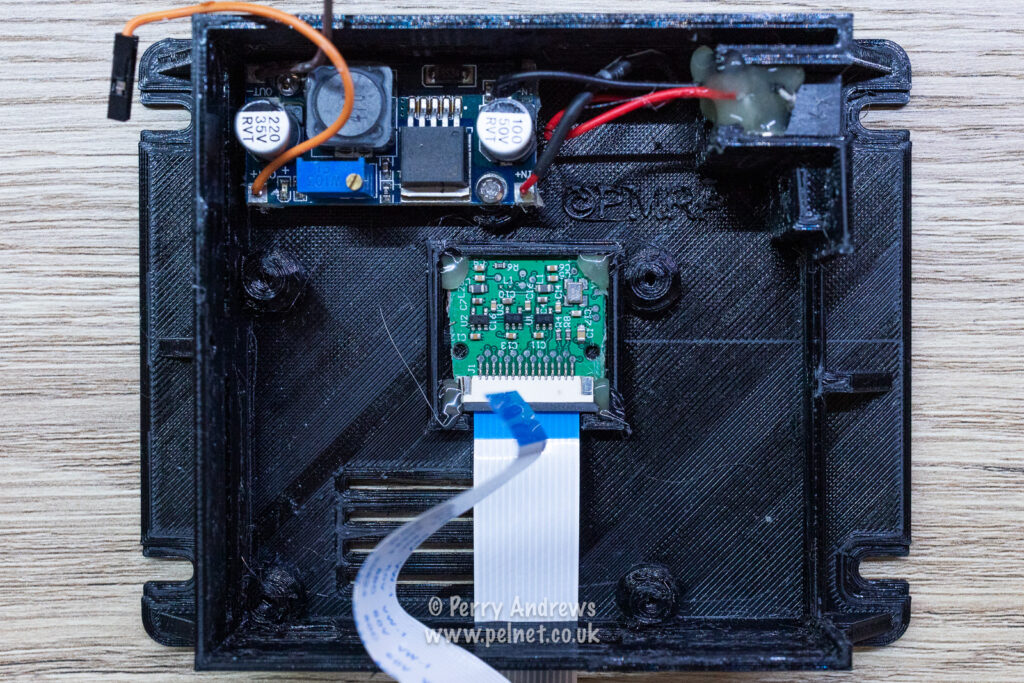
Now you can assemble the Arduino on a piece of veroboard with connections for the NeoPixels and a second veroboard with the RTC. I also used a small DC-DC converter to step down the 12v adaptor I had to 5v for the Arduino.

There should be enough room to connect the Arduino to the computer for programming without removing it. When connecting to the computer I removed the connection to the NeoPixels to avoid drawing too much current from the computer.
Code
The code is split in a number of parts. First is the declaration of libraries and global variables.
/*
*
*   Copyright (c) 2026, Perry Andrews
*   https://www.pelnet.co.uk
*   All rights reserved.
*
*   Title: NeoPixel Clock
*/

#include <Adafruit_NeoPixel.h>
#include <Wire.h>
#include <DS3231-RTC.h>

// Define the NeoPixels Arduino pin
#define LED_PIN     6

// How many NeoPixels are attached to the Arduino
#define LED_COUNT  58

// NeoPixel brightness, 0 (min) to 255 (max)
#define BRIGHTNESS 128

// Declare our NeoPixel strip object:
Adafruit_NeoPixel strip(LED_COUNT, LED_PIN, NEO_GRB);

DS3231 myRTC;

// Set these values for the RTC
byte year = 26;
byte month = 1;
byte date = 11;
byte dOW = 1;
byte hour = 21;
byte minute = 35;
byte second = 0;
byte oldhour = 24;
byte oldminute = 60;
The values assigned to the time variables is only used during the first programming. At normal startup after the RTC has been set the values are overwritten by the RTC.
Next is the setup code:
void setup() {

  // Start the I2C interface
  Wire.begin();

  // Set Up DS3231 RTC
  bool mode12 = false; // use 24-hour clock mode
  myRTC.setClockMode(mode12); // uploads 'true' (1) to bit 6 of register 0x02

  // Set Time - One off, comment out after first run.
  /*
  myRTC.setYear(year); // uploads 22 to register 0x06
  myRTC.setMonth(month); // uploads 1 to register 0x05
  myRTC.setDate(date); // uploads 5 to register 0x04
  myRTC.setDoW(dOW); // uploads 1 to register 0x03 (Sunday)
  myRTC.setHour(hour); // uploads 19 to register 0x02
  myRTC.setMinute(minute); // uploads 17 to register 0x01
  myRTC.setSecond(second); // uploads 42 to register 0x00
  */

  // Initialise LEDR, LEDG and LEDB as outputs
  pinMode(LEDR, OUTPUT);
  pinMode(LEDG, OUTPUT);
  pinMode(LEDB, OUTPUT);

  // Turn off all LEDs initially
  digitalWrite(LEDR, HIGH);
  digitalWrite(LEDG, HIGH);
  digitalWrite(LEDB, HIGH);

  strip.begin();           // Initialise NeoPixel
  strip.show();            // Turn OFF all pixels ASAP
  strip.setBrightness(BRIGHTNESS); // Set BRIGHTNESS

  display_digit(0,0,0);

  // Turn on the built-in red LED and turn off the rest
  digitalWrite(LEDR, LOW);
  digitalWrite(LEDG, HIGH);
  digitalWrite(LEDB, HIGH);

}
The serial interface was used for debugging but I removed from the final code.
The loop code:
void loop() {
  // put your main code here, to run repeatedly:
  bool h12;
  bool hPM;
  bool CenturyBit;
  char digitcol = 7; // White Digits

  byte date = myRTC.getDate();
  byte month = myRTC.getMonth(CenturyBit);
  byte year = myRTC.getYear();
  byte dOW = myRTC.getDoW();
  byte hour = myRTC.getHour(h12, hPM);
  byte minute = myRTC.getMinute();
  byte second = myRTC.getSecond();

  // Display Time on NeoPixel Display
  if (hour != oldhour){
    oldhour = hour;
    display_digit(hour % 10,2,digitcol);
    hour = hour / 10;
    display_digit(hour,3,digitcol);
    //oldminute = 60;
  }
  if(minute != oldminute){
    oldminute = minute;
    display_digit(minute % 10,0,digitcol);
    minute = minute / 10;
    display_digit(minute,1,digitcol);
    display_colon(digitcol);
  }
}
Additionally there are some subroutines called in loop:
void display_colon(char col){
  uint32_t colour;
  switch(col){
    case 0:
      colour = strip.Color(0, 0, 0);  //Off
      break;
    case 1:
      colour = strip.Color(255, 0, 0);  //Red
      break;
    case 2:
      colour = strip.Color(0, 255, 0);  //Green
      break;
    case 3:
      colour = strip.Color(0, 0, 255);  //Blue
      break;
    case 4:
      colour = strip.Color(255, 255, 0);  //Yellow
      break;
    case 5:
      colour = strip.Color(255, 0, 255);  //Magenta
      break;
    case 6:
      colour = strip.Color(0, 255, 255);  //Cyan
      break;
    case 7:
      colour = strip.Color(255, 255, 255);  //White
      break;
    default:
      colour = strip.Color(0, 0, 0);  //Off
  }
  strip.setPixelColor(28, colour);
  strip.setPixelColor(29, colour);
}

void display_digit(char num, char digit, char col){
  char offset = 0;
  uint32_t colour;

  switch(digit){
    case 0:
      offset = 0;
      break;
    case 1:
      offset = 14;
      break;
    case 2:
      offset = 30;
      break;
    case 3:
      offset = 44;
      break;
    default:
      offset = 0;
      break;
  }
  switch(col){
    case 0:
      colour = strip.Color(0, 0, 0);  //Off
      break;
    case 1:
      colour = strip.Color(255, 0, 0);  //Red
      break;
    case 2:
      colour = strip.Color(0, 255, 0);  //Green
      break;
    case 3:
      colour = strip.Color(0, 0, 255);  //Blue
      break;
    case 4:
      colour = strip.Color(255, 255, 0);  //Yellow
      break;
    case 5:
      colour = strip.Color(255, 0, 255);  //Magenta
      break;
    case 6:
      colour = strip.Color(0, 255, 255);  //Cyan
      break;
    case 7:
      colour = strip.Color(255, 255, 255);  //White
      break;
    default:
      colour = strip.Color(255, 0, 0);  //Red
  }
  switch(num){
    case 0:
      strip.setPixelColor(0 + offset, colour); //a
      strip.setPixelColor(1 + offset, colour); //a
      strip.setPixelColor(2 + offset, colour); //b
      strip.setPixelColor(3 + offset, colour); //b
      strip.setPixelColor(4 + offset, colour); //c
      strip.setPixelColor(5 + offset, colour); //c
      strip.setPixelColor(6 + offset, colour); //d
      strip.setPixelColor(7 + offset, colour); //d
      strip.setPixelColor(8 + offset, colour); //e
      strip.setPixelColor(9 + offset, colour); //e
      strip.setPixelColor(10 + offset, colour); //f
      strip.setPixelColor(11 + offset, colour); //f
      strip.setPixelColor(12 + offset, strip.Color(0, 0, 0)); //g
      strip.setPixelColor(13 + offset, strip.Color(0, 0, 0)); //g
      strip.show();
      break;
    case 1:
      strip.setPixelColor(0 + offset, colour); //a
      strip.setPixelColor(1 + offset, colour); //a
      strip.setPixelColor(2 + offset, colour); //b
      strip.setPixelColor(3 + offset, colour); //b
      strip.setPixelColor(4 + offset, strip.Color(0, 0, 0)); //c
      strip.setPixelColor(5 + offset, strip.Color(0, 0, 0)); //c
      strip.setPixelColor(6 + offset, strip.Color(0, 0, 0)); //d
      strip.setPixelColor(7 + offset, strip.Color(0, 0, 0)); //d
      strip.setPixelColor(8 + offset, strip.Color(0, 0, 0)); //e
      strip.setPixelColor(9 + offset, strip.Color(0, 0, 0)); //e
      strip.setPixelColor(10 + offset, strip.Color(0, 0, 0)); //f
      strip.setPixelColor(11 + offset, strip.Color(0, 0, 0)); //f
      strip.setPixelColor(12 + offset, strip.Color(0, 0, 0)); //g
      strip.setPixelColor(13 + offset, strip.Color(0, 0, 0)); //g
      strip.show();
      break;
    case 2:
      strip.setPixelColor(0 + offset, strip.Color(0, 0, 0)); //a
      strip.setPixelColor(1 + offset, strip.Color(0, 0, 0)); //a
      strip.setPixelColor(2 + offset, colour);  //b
      strip.setPixelColor(3 + offset, colour);  //b
      strip.setPixelColor(4 + offset, colour);  //c
      strip.setPixelColor(5 + offset, colour);  //c
      strip.setPixelColor(6 + offset, strip.Color(0, 0, 0));  //d
      strip.setPixelColor(7 + offset, strip.Color(0, 0, 0));  //d
      strip.setPixelColor(8 + offset, colour);  //e
      strip.setPixelColor(9 + offset, colour);  //e
      strip.setPixelColor(10 + offset, colour); //f
      strip.setPixelColor(11 + offset, colour); //f
      strip.setPixelColor(12 + offset, colour); //g
      strip.setPixelColor(13 + offset, colour); //g
      strip.show();
      break;
    case 3:
      strip.setPixelColor(0 + offset, colour);  //a
      strip.setPixelColor(1 + offset, colour);  //a
      strip.setPixelColor(2 + offset, colour);  //b
      strip.setPixelColor(3 + offset, colour);  //b
      strip.setPixelColor(4 + offset, colour);  //c
      strip.setPixelColor(5 + offset, colour);  //c
      strip.setPixelColor(6 + offset, strip.Color(0, 0, 0));  //d
      strip.setPixelColor(7 + offset, strip.Color(0, 0, 0));  //d
      strip.setPixelColor(8 + offset, strip.Color(0, 0, 0));  //e
      strip.setPixelColor(9 + offset, strip.Color(0, 0, 0));  //e
      strip.setPixelColor(10 + offset, colour);  //f
      strip.setPixelColor(11 + offset, colour);  //f
      strip.setPixelColor(12 + offset, colour);  //g
      strip.setPixelColor(13 + offset, colour);  //g
      strip.show();
      break;
    case 4:
      strip.setPixelColor(0 + offset, colour);   //a
      strip.setPixelColor(1 + offset, colour);   //a
      strip.setPixelColor(2 + offset, colour);   //b
      strip.setPixelColor(3 + offset, colour);   //b
      strip.setPixelColor(4 + offset, strip.Color(0, 0, 0));  //c
      strip.setPixelColor(5 + offset, strip.Color(0, 0, 0));  //c
      strip.setPixelColor(6 + offset, colour);   //d
      strip.setPixelColor(7 + offset, colour);   //d
      strip.setPixelColor(8 + offset, strip.Color(0, 0, 0));  //e
      strip.setPixelColor(9 + offset, strip.Color(0, 0, 0));  //e
      strip.setPixelColor(10 + offset, strip.Color(0, 0, 0));  //f
      strip.setPixelColor(11 + offset, strip.Color(0, 0, 0));  //f
      strip.setPixelColor(12 + offset, colour);  //g
      strip.setPixelColor(13 + offset, colour);  //g
      strip.show();
      break;
    case 5:
      strip.setPixelColor(0 + offset, colour);   //a
      strip.setPixelColor(1 + offset, colour);   //a
      strip.setPixelColor(2 + offset, strip.Color(0, 0, 0));  //b
      strip.setPixelColor(3 + offset, strip.Color(0, 0, 0));  //b
      strip.setPixelColor(4 + offset, colour);   //c
      strip.setPixelColor(5 + offset, colour);   //c
      strip.setPixelColor(6 + offset, colour);   //d
      strip.setPixelColor(7 + offset, colour);   //d
      strip.setPixelColor(8 + offset, strip.Color(0, 0, 0));  //e
      strip.setPixelColor(9 + offset, strip.Color(0, 0, 0));  //e
      strip.setPixelColor(10 + offset, colour);  //f
      strip.setPixelColor(11 + offset, colour);  //f
      strip.setPixelColor(12 + offset, colour);  //g
      strip.setPixelColor(13 + offset, colour);  //g
      strip.show();
      break;
    case 6:
      strip.setPixelColor(0 + offset, colour);   //a
      strip.setPixelColor(1 + offset, colour);   //a
      strip.setPixelColor(2 + offset, strip.Color(0, 0, 0));  //b
      strip.setPixelColor(3 + offset, strip.Color(0, 0, 0));  //b
      strip.setPixelColor(4 + offset, colour);   //c
      strip.setPixelColor(5 + offset, colour);   //c
      strip.setPixelColor(6 + offset, colour);   //d
      strip.setPixelColor(7 + offset, colour);   //d
      strip.setPixelColor(8 + offset, colour);   //e
      strip.setPixelColor(9 + offset, colour);   //e
      strip.setPixelColor(10 + offset, colour);  //f
      strip.setPixelColor(11 + offset, colour);  //f
      strip.setPixelColor(12 + offset, colour);  //g
      strip.setPixelColor(13 + offset, colour);  //g
      strip.show();
      break;
    case 7:
      strip.setPixelColor(0 + offset, colour);   //a
      strip.setPixelColor(1 + offset, colour);   //a
      strip.setPixelColor(2 + offset, colour);   //b
      strip.setPixelColor(3 + offset, colour);   //b
      strip.setPixelColor(4 + offset, colour);   //c
      strip.setPixelColor(5 + offset, colour);   //c
      strip.setPixelColor(6 + offset, strip.Color(0, 0, 0));  //d
      strip.setPixelColor(7 + offset, strip.Color(0, 0, 0));  //d
      strip.setPixelColor(8 + offset, strip.Color(0, 0, 0));  //e
      strip.setPixelColor(9 + offset, strip.Color(0, 0, 0));  //e
      strip.setPixelColor(10 + offset, strip.Color(0, 0, 0));  //f
      strip.setPixelColor(11 + offset, strip.Color(0, 0, 0));  //f
      strip.setPixelColor(12 + offset, strip.Color(0, 0, 0));  //g
      strip.setPixelColor(13 + offset, strip.Color(0, 0, 0));  //g
      strip.show();
      break;
    case 8:
      strip.setPixelColor(0 + offset, colour);   //a
      strip.setPixelColor(1 + offset, colour);   //a
      strip.setPixelColor(2 + offset, colour);   //b
      strip.setPixelColor(3 + offset, colour);   //b
      strip.setPixelColor(4 + offset, colour);   //c
      strip.setPixelColor(5 + offset, colour);   //c
      strip.setPixelColor(6 + offset, colour);   //d
      strip.setPixelColor(7 + offset, colour);   //d
      strip.setPixelColor(8 + offset, colour);   //e
      strip.setPixelColor(9 + offset, colour);   //e
      strip.setPixelColor(10 + offset, colour);  //f
      strip.setPixelColor(11 + offset, colour);  //f
      strip.setPixelColor(12 + offset, colour);  //g
      strip.setPixelColor(13 + offset, colour);  //g
      strip.show();
      break;
    case 9:
      strip.setPixelColor(0 + offset, colour);   //a
      strip.setPixelColor(1 + offset, colour);   //a
      strip.setPixelColor(2 + offset, colour);   //b
      strip.setPixelColor(3 + offset, colour);   //b
      strip.setPixelColor(4 + offset, colour);   //c
      strip.setPixelColor(5 + offset, colour);   //c
      strip.setPixelColor(6 + offset, colour);   //d
      strip.setPixelColor(7 + offset, colour);   //d
      strip.setPixelColor(8 + offset, strip.Color(0, 0, 0));  //e
      strip.setPixelColor(9 + offset, strip.Color(0, 0, 0));  //e
      strip.setPixelColor(10 + offset, colour);  //f
      strip.setPixelColor(11 + offset, colour);  //f
      strip.setPixelColor(12 + offset, colour);  //g
      strip.setPixelColor(13 + offset, colour);  //g
      strip.show();
      break;
  }
}
This is all the code used. I appreciate there is probably a better way to implement displaying a digit.
Conclusion
This is a first iteration of the project and is not complete. Also, I have not optimised the code in any way and so there could be bugs and inefficiencies in the code. However, it does work.
The following improvements will be implemented at a future date.
- Light sensor to dim the brightness in dark ambient light
- Buttons to set the time without using the computer
- Button to change digit colours
- Alternative IR remote control to set time & colour
I hope this project has been inspirational and shows you can create a project based on someone else’s shared work.